
The RJMetrics business dashboard is so comprehensive that we hate to think of our customers using any other application for analysis. However, we understand that occasionally, for one reason or another, everyone needs to plop some raw data into Excel or another external app.
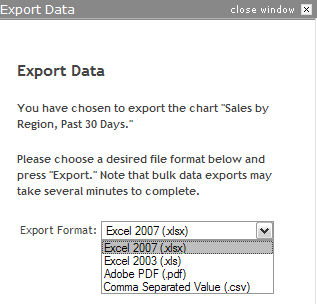
As such, we’ve significantly expanded our “Export Data” functionality to include CSV (comma separated value), XLS (Excel 2003), XLSX (Excel 2007), and PDF (Adobe Document Reader) formats.
There are two ways to access the “Export Data” feature, depending on whether you would like to export the data behind a single chart or an entire dashboard. To extract a single chart’s data, simply click the “Export Data” link at the bottom of the chart:
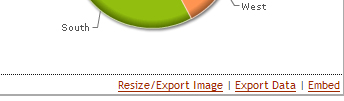
Click “Export Data” to export the data behind any chart
To extract an entire dashboard’s data, simply click the “Export” link in the “Dashboard Options” section (on the top-right edge of any dashboard):
Use the “Export” link to export an entire dashboard
After clicking either of these links, you prompted to choose your desired data format:

Several formats are available for exported chart data
After choosing your desired format, simply click “Export” and the download will begin. You will notice that only Excel formats are available for exporting entire dashboards, since each chart’s data will exist on its own tab within the Excel workbook:

Each chart’s data appears on its own tab in Excel
We hope this update makes life easier for all of our fellow data geeks out there. Stay tuned for more cool features!

